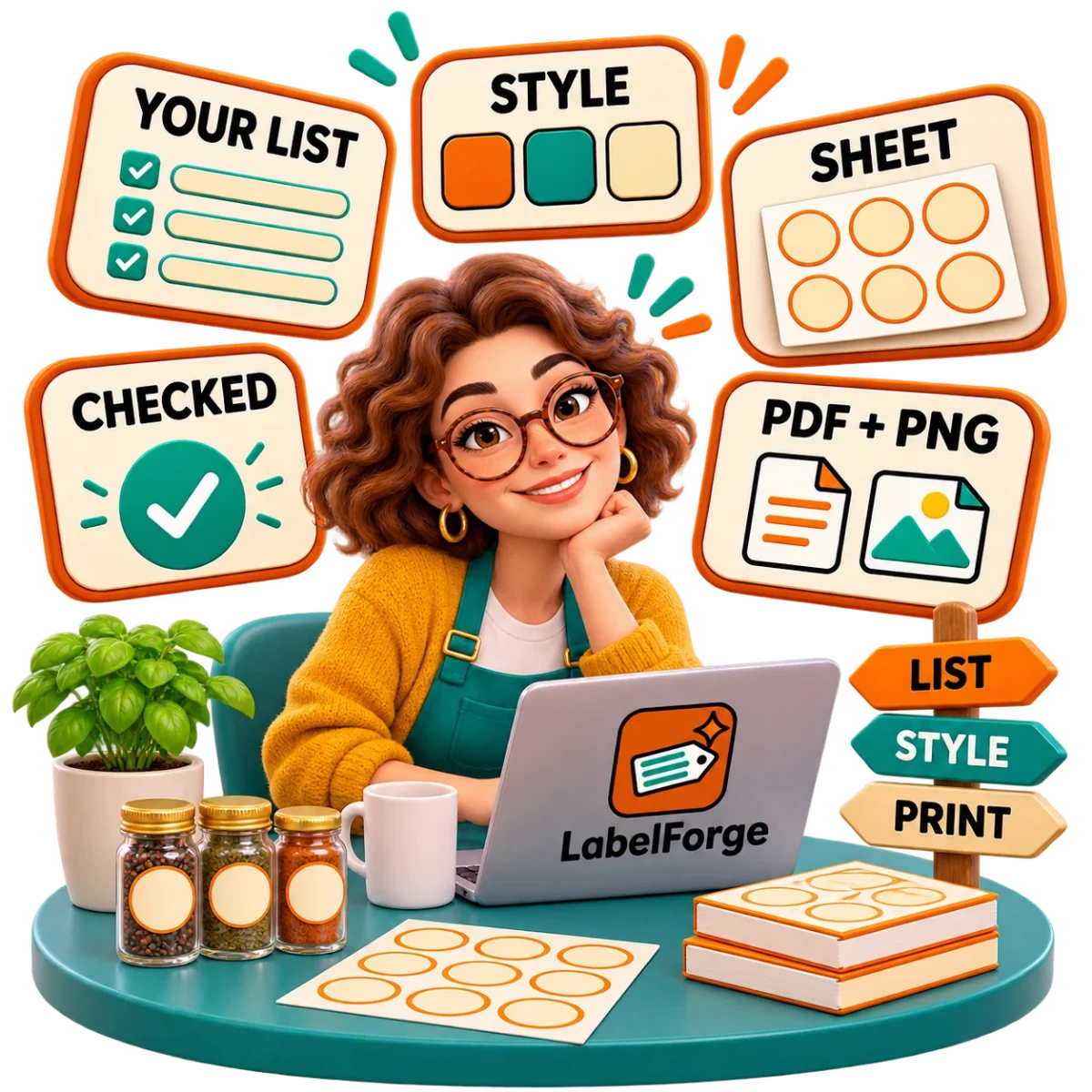
LabelForge turns one list into a whole matching label set, ready to print. Pick a label type (pantry, spice jars, kids’ names, candle, soap, gift tags) and one of 12 common sticker-sheet layouts in US Letter or A4, paste your list and choose a style. LabelForge fits every name, checks each label for print problems and exports a print PDF at the exact sheet size, plus PNGs. Commercial use of the labels you make. One payment, no subscription, no API key.
Creating beautiful, professional-looking printable labels sounds simple until you need to produce an entire matching collection. Designing one pantry label might take only a few minutes. But creating 40 spice labels, 100 product labels, or multiple seasonal collections can quickly become repetitive and time-consuming. Every label needs consistent typography, spacing, sizing, and alignment.
Longer product names must fit properly, and the finished designs must match the sticker sheets being used.This is exactly the problem that LabelForge aims to solve. LabelForge is a browser-based label creation application designed to transform ordinary lists into coordinated, print-ready label collections. Instead of manually creating every label, users can enter their text, choose a design style, select a compatible sticker sheet, and generate an entire collection.
The printable products market includes a diverse range of digital products, from planners and calendars to organizational templates, stickers, gift tags, and product labels. Among these categories, printable labels offer particularly practical applications. Homeowners use pantry labels to organize kitchens. Parents need name labels for school supplies. Candle makers require product labels.
Soap businesses need consistent packaging designs, while online craft sellers create themed printable collections. However, producing coordinated labels involves considerably more than placing decorative text inside a shape. A complete collection must maintain consistent visual styling while accommodating different words, text lengths, and printing requirements. Consider a collection containing the following spice labels:
- Basil
- Cinnamon
- Garlic Powder
- Italian Seasoning
- Smoked Paprika
- Ground Coriander
- Crushed Red Pepper
- Everything Bagel Seasoning
Although these names belong to the same collection, they have significantly different lengths. When designing manually, shorter names might appear disproportionately large while longer names overflow their boundaries. Each adjustment takes additional time. Rather than functioning as an unrestricted graphic design platform, it prioritizes repeatable label-set production.
Its main advantages are connected to automation and consistency:
- Converting lists directly into label collections.
- Maintaining coordinated design styles.
- Working with predefined physical sticker-sheet layouts.
- Automatically fitting text.
- Checking common printing problems.
- Exporting files for printing and digital distribution.
Features and Benefits:
- Turn One Simple List Into an Entire Label Collection
- Ten Coordinated Design Styles
- Twelve Common Sticker-Sheet Layouts
- Automatic Text Fitting
- Built-In Print Quality Checking
- Printer Alignment Page
- Multiple Export Formats
Start by choosing the type of labels you want to create. For example, select spice labels if you are organizing a collection of kitchen seasonings. The selected category helps establish an appropriate design workflow. Select a supported layout. This determines the dimensions and positioning of the labels. Choosing the correct layout is essential when the final designs will be printed on physical sticker sheets.
Enter one label name per line. The application converts the entered text into individual label entries. Users can also include an optional second line using the supported separator format. This may be useful for secondary information such as botanical names or fragrances. Choose one of the built-in styles. Then add appropriate images, artwork, or branding elements. Individual labels can be edited when necessary. The live preview helps users inspect the collection before exporting.
Run the print checker. Inspect any warnings involving text size, boundaries, readability, resolution, or duplicate content. Resolve issues that could affect the finished product. If printing physical labels, use the alignment page to check compatibility with your paper and printer. Apply an offset when necessary. Once the collection is ready, export the desired files. These can include the complete PDF, sheet images, and individual PNG files.
We particularly appreciate the combination of list-based generation, consistent styling, print checking, and printer alignment. Each feature addresses a practical challenge commonly associated with printable labels. Together, they create a more complete production workflow than a simple text-to-image label generator…..
Source: LabelForge
.
LabelForge, LabelCreator ,LabelDesign ,CustomLabels ,ProductLabels ,LabelMaking ,CreativeLabels ,DIYLabels ,PersonalizedLabels ,LabelingSolutions ,CraftLabels ,StickerLabels ,HomeOfficeLabels ,CreativeEntrepreneurs ,LabelYourLife ,LabelingMadeEasy ,CraftYourLabels ,ProfessionalLabels ,SmallBusinessLabels ,LabelCreatorsCommunity


Leave a Reply